
How to Install n8n on Windows 11 Locally for Free (2026)
You can install n8n on Windows for free and run it on your own PC, without Docker, using npm. There is one catch that older guides miss: n8n 3.0 no longer supports npm or npx, so this route suits learning and testing on version 2, and Docker is the long-term route.
This guide shows what the install really does on a Windows 11 PC, builds a first workflow you can paste in, and covers the errors that appeared along the way.
How this guide was made
This article was drafted with AI assistance. The npm install, the workflow and the restart were carried out on a Windows 11 PC on 23 and 24 November 2026, and the results below come from that PC. The Docker section was not tested; it summarises n8n's own documentation. The site owner reviews each article before it is published.
Quick answer: install n8n without Docker
Install Node.js first, then run these lines in PowerShell:
mkdir C:\n8n-local
cd C:\n8n-local
npm init -y
npm install n8n@2.48.7
$env:N8N_USER_FOLDER = "C:\n8n-local\data"
$env:N8N_LISTEN_ADDRESS = "127.0.0.1"
npx n8n start
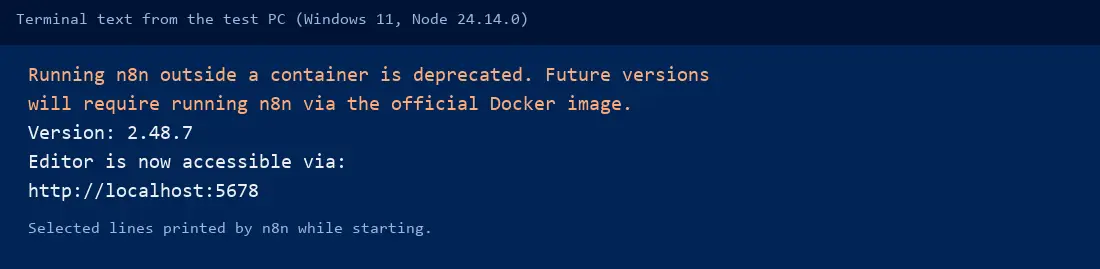
Wait for the line "Editor is now accessible", then open http://localhost:5678 in your browser.
npm or Docker: which should you use?
| npm (this guide) | Docker | |
|---|---|---|
| Works today on version 2 | Yes | Yes |
| Works from n8n 3.0 | No | Yes |
| Needs Docker Desktop | No | Yes |
| Good for | Learning, testing, a quick local tool | Anything you plan to keep |
On 24 November 2026 the changelog described n8n 3.0 as an early access release. If you will depend on your workflows, start with Docker.
Is n8n free on your own PC?
n8n describes its Community edition as the free edition, which runs without a licence key. It is source-available rather than open source, and the licence FAQ explains which uses are allowed, so read it if you plan to sell a service built on n8n.
Before you start
- Node.js: n8n's docs say between 20.19 and 24.x, while the 2.48.7 package asks for 24 or newer. Version 24 satisfies both. Check yours with
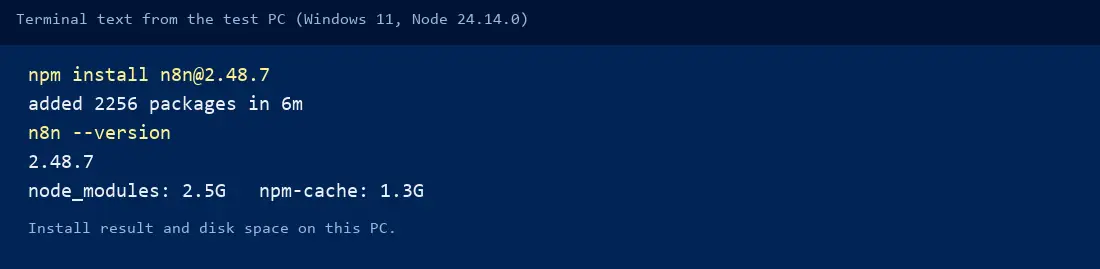
node -v. - Disk space: allow about 4 GB. In this install the program folder took 2.5 GB and the download cache 1.3 GB.
- A folder of your own: installing into one folder makes n8n easy to remove later.
Step 1: Install n8n on Windows with npm
Run the mkdir, cd, npm init and npm install lines above. The download took about six and a half minutes here and added 2256 packages. Yellow "deprecated" warnings about other packages appeared and did not stop the install.
Step 2: Choose where n8n keeps its data
N8N_USER_FOLDER sets where n8n creates its .n8n folder, which holds the database and encryption key. Set it if you already use n8n, so a test does not share your real data.
N8N_LISTEN_ADDRESS matters for safety. Its default is ::, meaning all network addresses, so the quick answer sets a local-only address. With that setting, the test PC showed n8n listening on the local address alone.
These $env: lines last until you close that PowerShell window, so set them again each time you start n8n.
Step 3: Start n8n and create the owner account
Run npx n8n start. On the first start n8n prepares its database. The log also carries a clear warning about the npm route:
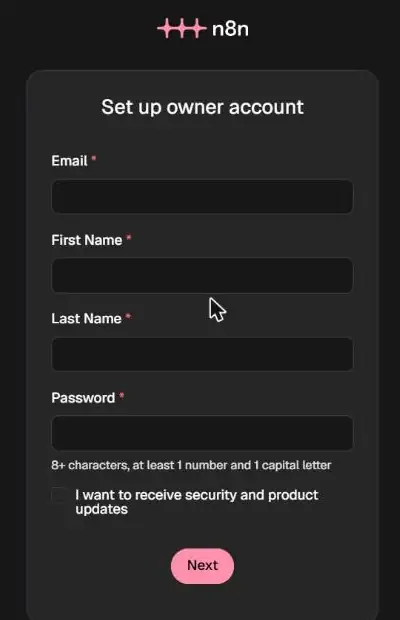
Open http://localhost:5678. Fill in the owner account form; the password needs 8 or more characters with a number and a capital letter. The account belongs to this local copy and is separate from any n8n Cloud account.
Step 4: Build your first workflow
This example takes three sample invoices, keeps only the unpaid ones past their due date, and writes a reminder. It needs no accounts or API keys. Copy the JSON, click an empty workflow canvas and press Ctrl + V (in the test, the same workflow was loaded with n8n's import command):
{
 "name": "Overdue invoice reminders",
 "nodes": [
  {
   "id": "a1",
   "name": "Manual Trigger",
   "type": "n8n-nodes-base.manualTrigger",
   "typeVersion": 1,
   "position": [
    0,
    0
   ],
   "parameters": {}
  },
  {
   "id": "a2",
   "name": "Sample invoices",
   "type": "n8n-nodes-base.code",
   "typeVersion": 2,
   "position": [
    220,
    0
   ],
   "parameters": {
    "jsCode": "return [\n  { json: { invoice: 'INV-001', client: 'Client A', due: '2026-11-10', paid: true } },\n  { json: { invoice: 'INV-002', client: 'Client B', due: '2026-11-15', paid: false } },\n  { json: { invoice: 'INV-003', client: 'Client C', due: '2026-12-05', paid: false } },\n];"
   }
  },
  {
   "id": "a3",
   "name": "Overdue only",
   "type": "n8n-nodes-base.filter",
   "typeVersion": 2,
   "position": [
    440,
    0
   ],
   "parameters": {
    "conditions": {
     "options": {
      "caseSensitive": true,
      "leftValue": "",
      "typeValidation": "strict"
     },
     "combinator": "and",
     "conditions": [
      {
       "id": "c1",
       "leftValue": "={{ $json.paid }}",
       "rightValue": "",
       "operator": {
        "type": "boolean",
        "operation": "false",
        "singleValue": true
       }
      },
      {
       "id": "c2",
       "leftValue": "={{ DateTime.fromISO($json.due) < $today }}",
       "rightValue": "",
       "operator": {
        "type": "boolean",
        "operation": "true",
        "singleValue": true
       }
      }
     ]
    },
    "options": {}
   }
  },
  {
   "id": "a4",
   "name": "Reminder text",
   "type": "n8n-nodes-base.set",
   "typeVersion": 3.4,
   "position": [
    660,
    0
   ],
   "parameters": {
    "assignments": {
     "assignments": [
      {
       "id": "s1",
       "name": "message",
       "type": "string",
       "value": "=Hello {{ $json.client }}, invoice {{ $json.invoice }} was due on {{ $json.due }}. Please let me know when I can expect payment."
      }
     ]
    },
    "options": {}
   }
  }
 ],
 "connections": {
  "Manual Trigger": {
   "main": [
    [
     {
      "node": "Sample invoices",
      "type": "main",
      "index": 0
     }
    ]
   ]
  },
  "Sample invoices": {
   "main": [
    [
     {
      "node": "Overdue only",
      "type": "main",
      "index": 0
     }
    ]
   ]
  },
  "Overdue only": {
   "main": [
    [
     {
      "node": "Reminder text",
      "type": "main",
      "index": 0
     }
    ]
   ]
  }
 }
}
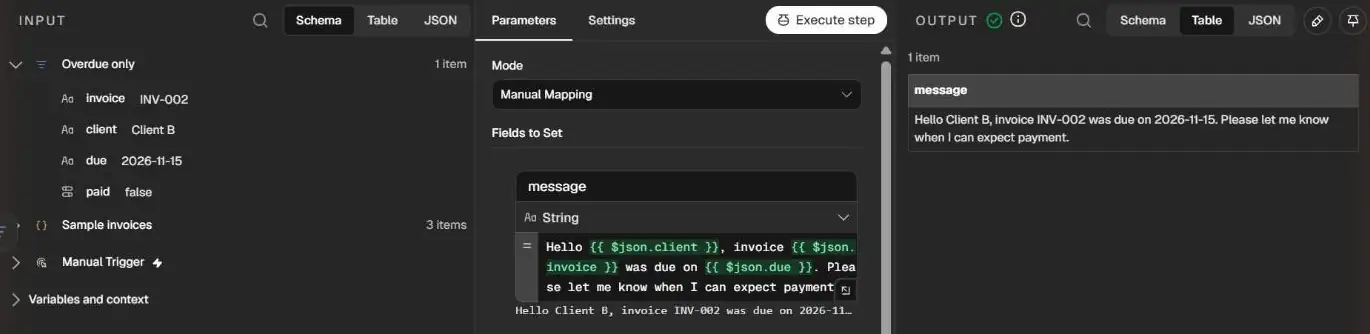
Click Execute workflow. Three items went in and one came out:
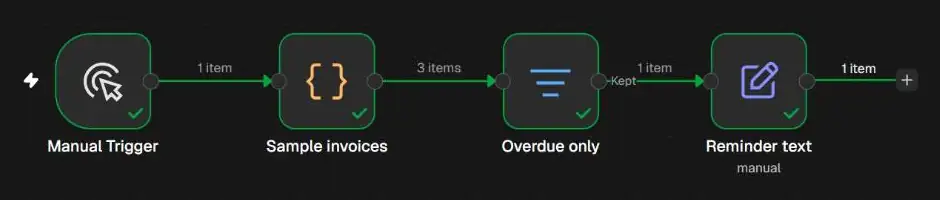
The reminder was for INV-002 only, because INV-001 is paid and INV-003 is not due yet:
The workflow does not send anything. It is a safe starting point before you connect email. The dates are fixed samples, so change them if you run it later. To keep your invoices in a spreadsheet, see the Google Sheets invoice template.
Stop, restart and back up n8n
Press Ctrl + C in the PowerShell window to stop n8n. Run the two $env: lines and npx n8n start again to restart. In this test n8n was ready again in 24 seconds, and the account and workflow were still there. To save your workflows to a file:
npx n8n export:workflow --all --output=backup.json
The command reported "Successfully exported 1 workflow". Keep a private copy of the data folder too, because it holds the database and encryption key.
Common n8n errors on Windows
| What you see | Why | Fix |
|---|---|---|
| "n8n is starting up. Please wait" | The page opened before n8n was ready | Wait a few seconds and refresh |
| "n8n's port 5678 is already in use" | Another n8n is running | Close the other window first |
| "running scripts is disabled" from npx | PowerShell blocks npx.ps1 |
Use npx.cmd n8n start, or see the execution policy fix |
| npx starts the wrong copy | You are in a different folder | cd into your n8n folder first |
The first two appeared in this test.
Install n8n with Docker on Windows (not tested here)
n8n recommends Docker for most self-hosting needs. Its newer one-line setup runs a script that needs WSL or a similar shell, not plain PowerShell. The same page warns that its bundled sandbox runner is privileged, belongs on a dedicated machine, and must not be exposed to the internet. On an everyday PC, read that warning before you choose it.
How to remove n8n
Stop n8n, export anything you want to keep, then delete the C:\n8n-local folder. If you set the data folder as above, your n8n data is deleted with it. npm's download cache is separate.
Frequently asked questions
Can I install n8n on Windows without Docker? Yes, with npm today. From n8n 3.0 you need Docker.
Is there an n8n desktop app for Windows? This guide uses the browser editor. n8n's current install pages describe npm and Docker.
Does n8n keep running when I close the window? No. With this method n8n stops when its PowerShell window closes, and it cannot work while the PC sleeps.
Conclusion
To install n8n on Windows for free, use a folder of its own, Node 24, a local listen address and npx n8n start. Use it to learn, and move to Docker before n8n 3.0.
Which step gave you trouble? Send us the exact message through the contact page.
Sources
- Install with npm, n8n docs, accessed 2026-11-24
- v3.0 breaking changes, n8n docs, accessed 2026-11-24
- One-line setup, n8n docs, accessed 2026-11-24
- Install with Docker, n8n docs, accessed 2026-11-24
- Compare editions, n8n docs, accessed 2026-11-24
- License FAQ, n8n docs, accessed 2026-11-24